对PyQt5的输入对话框使用(QInputDialog)详解
PyQt5中QInputDialog的使用,Qt的QInputDialog类提供了一种简单方面的对话框来获得用户的单个输入信息,它提供了4种数据类型的输入:
1)字符串型(方法=QInputDialog.getText);
2)Int类型数据(方法=QInputDialog.getInt);
3)double类型数据(方法=QInputDialog.getDouble);
4)下拉列表框的条目(方法=QInputDialog.getItem)。
QInputDialog继承自QDialog,提供简单输入的对话框:
class QInputDialog(QDialog)
| QInputDialog(QWidget parent=None, Qt.WindowFlags flags=0)
QInputDialog简介:
Qt提供了一个QInputDialog类,QInputDialogDialog类提供了一种简单方便的对话框来获得用户的单个输入信息,目前提供了4种数据类型的输入,可以使一个字符串、一个Int类型数据、一个double类型数据或者是一个下拉列表框的条目。一个标准输入对话框的基本结构如下图所示:
其中包含一个提示标签,一个输入控件。如实调用字符串输入框,则为一个QLineEdit;若是调用Int类型或都报了类型输入框,则为一个QSpinBox;若是调用列表条目输入框,则为一个QComboBox;还包括一个确定输入(OK)按钮和一个取消输入(Cancel)按钮。
QInputDialog的静态函数
1、getText()
QInputDialog的getText()函数弹出标准字符串输入对话框,getText()函数原型如下:
QString getText( QWidget * parent, #标准输入对话框的父窗口
const QString & title, #输入对话框的标题名
const QString & label,#标准输入对话框的标签提示
const QString & text = QString(), #标准字符串输入对话框弹出时QLineEdit控件中默认出现的文字
bool * ok = 0, #用于指示标准输入对话框的哪个按钮被触发,若ok为true,则表示用户单击了OK(确定)按钮,若ok为false,则表示用户单击了Cancel(取消)按钮
Qt::WindowFlags flags = 0, #知名标准输入对话框的窗体标识
Qt::InputMethodHints inputMethodHints = Qt::ImhNone ); [static]
2、getItem()
QInputDialog的getItem()函数弹出标准条目选择对话框,getItem()函数原型如下:
QString getItem( QWidget * parent, 标准输入对话框的父窗口
const QString & title, 标准输入对话框的标题名
const QString & label, 标准输入对话框的标签提示
const QStringList & list, 指定标准输入对话框中QComboBox控件显示的可选条目,为一个QStringList对象
int current = 0, 指定标准输入对话框中QComboBox控件显示的可选条目,为一个QStringList对象
bool editable = true, 指定QComboBox控件中显示的文字是否可编辑;
bool * ok = 0, 用于指定标准输入对话框的哪个那妞被触发,若ok为false,则表示用户单击了Cancel(取消)按钮;
Qt::WindowFlags f = 0 ) ; [static]用于指定标准输入对话框的哪个那妞被触发,若ok为false,则表示用户单击了Cancel(取消)按钮;
3、getInteger()
QInputDialog的getInteger()函数弹出标准int类型输入对话框,getInteger()函数原型如下:
int getInteger( QWidget * parent, 父窗口
const QString & title,标题名
const QString & label, 标签提示
int value = 0, 指定标准输入对话框中QSpinBox控件默认显示值
int minValue = -2147483647,
int maxValue = 2147483647, 指定QSpinBoxBox控件的数值范围,最小和最大值
int step = 1, step指定QSpinBox控件的步进值(即步长)
bool * ok = 0,
Qt::WindowFlags f = 0 ) ;
4、getDouble()
QInputDialog的getDouble()函数弹出标准double类型输入对话框,getDouble()函数原型如下:
double getDouble( QWidget * parent,
const QString & title,
const QString & label,标签提示
double value = 0, 指定标准输入对话框中QSpinBox控件默认显示值
double minValue = -2147483647,
double maxValue 2147483647,
int decimals = 1, 指定QSpinBox控件的浮动数的小数点位数
bool * ok = 0,
Qt::WindowFlags f = 0 ) ;
例子
1)字符串
def getText(self):
 text, okPressed = QInputDialog.getText(self, "Get text","Your name:", QLineEdit.Normal, "")
 if okPressed and text != '':
  print(text)
2)int
def getInteger(self):
  i, okPressed = QInputDialog.getInt(self, "Get integer","Percentage:", 28, 0, 100, 1)
  if okPressed:
   print(i)
3)double
def getDouble(self):
  d, okPressed = QInputDialog.getDouble(self, "Get double","Value:", 10.05, 0, 100, 10)
  if okPressed:
   print(d)
4)条目
def getChoice(self): #Get item/choice
 items = ("Red","Blue","Green")
 item, okPressed = QInputDialog.getItem(self, "Get item","Color:", items, 0, False)
 if okPressed and item:
  print(item)
简单例子1【引用出处】:
import sys
from PyQt5.QtWidgets import QApplication, QWidget, QInputDialog, QLineEdit
from PyQt5.QtGui import QIcon

class App(QWidget):

 def __init__(self):
  super().__init__()
  self.title = 'PyQt5 input dialogs - pythonspot.com'
  self.left = 10
  self.top = 10
  self.width = 640
  self.height = 480
  self.initUI()

 def initUI(self):
  self.setWindowTitle(self.title)
  self.setGeometry(self.left, self.top, self.width, self.height)

  self.getInteger()
  self.getText()
  self.getDouble()
  self.getChoice()

  self.show()

 def getInteger(self):
  i, okPressed = QInputDialog.getInt(self, "Get integer","Percentage:", 28, 0, 100, 1)
  if okPressed:
   print(i)

 def getDouble(self):
  d, okPressed = QInputDialog.getDouble(self, "Get double","Value:", 10.50, 0, 100, 10)
  if okPressed:
   print( d)

 def getChoice(self):
  items = ("Red","Blue","Green")
  item, okPressed = QInputDialog.getItem(self, "Get item","Color:", items, 0, False)
  if ok and item:
   print(item)

 def getText(self):
  text, okPressed = QInputDialog.getText(self, "Get text","Your name:", QLineEdit.Normal, "")
  if okPressed and text != '':
   print(text)

if __name__ == '__main__':
 app = QApplication(sys.argv)
 ex = App()
 sys.exit(app.exec_())
输入对话框使用例子2:
方法一>使用代码创建
————请参考 /post/163860.htm
方法二>使用Qt设计器创建
step1:使用Qt设计器创建GUI,如下图:
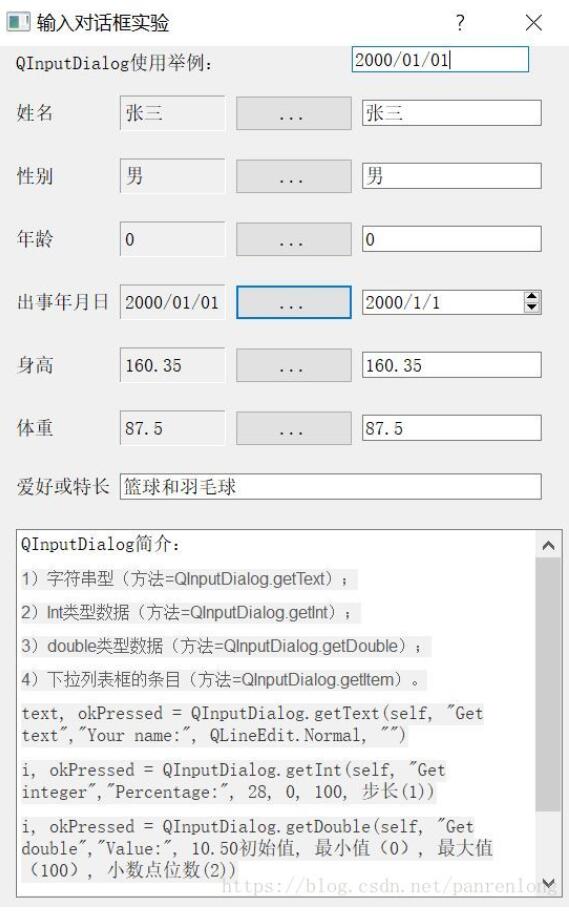
说明:
第4行控件为:出生年月(label)——label_date——dateButton——Date Edit
最右上角的控件为LineEdit框,用于输入日期的,这是一个废弃的控件,没有来得及删除。
图中第二列(用label显示)和第四列(用lineEdit显示)的显示结果一样,且第四列还具有和按钮控件输入功能。
step2:保存为.ui文件,并将其转为myinputdialog.py文件,执行该文件;
myinputdialog.py文件中的类名为:
class Ui_Dialog(object):
def setupUi(self, Dialog):
step3:新建主函数文件为myinputdialogmain.py,在此文件中添加如下代码:
from PyQt5.QtWidgets import *
import sys
from MyInputDialog2 import Ui_Dialog

class MyDialog(QDialog,Ui_Dialog):
 def __init__(self):
  super(MyDialog,self).__init__()
  self.setupUi(self)
  self.setWindowTitle("输入对话框实验")

  #6个按钮
  self.nameButton.clicked.connect(self.inputName)
  self.sexButton.clicked.connect(self.inputSex)
  self.ageButton.clicked.connect(self.inputAge)
  self.dateButton.clicked.connect(self.inputDate2) # Date Edit
  self.dateButton.clicked.connect(self.inputDate1) #对话框
  self.HButton.clicked.connect(self.inputHeight)
  self.WButton.clicked.connect(self.inputWeight)
  #6个Label显示标签
  #label_name,label_sex,label_age,label_date,label_h,label_w
  #7个LineEdit编辑框用于输入信息,与上面按钮具有同样功能
  #namelineEdit,sexlineEdit,agelineEdit,datelineEdit,hlineEdit,wlineEdit,lovelineEdit


 def inputName(self):
  name2 = self.namelineEdit.text()
  name, ok = QInputDialog.getText(self, "用户名",
          "请输入新的名字:",
          QLineEdit.Normal, self.label_name.text())
  if ok:
   self.label_name.setText(name)
   self.namelineEdit.setText(name)
  else:
   self.label_name.setText(name2)

 def inputSex(self):
  list = []
  list.append("男")
  list.append("女")
  sex, ok = QInputDialog.getItem(self, "性别", "请选择性别", list)
  if ok:
   self.label_sex.setText(sex)
   self.sexlineEdit.setText(sex)

 def inputAge(self):
  age, ok = QInputDialog.getInt(self, "年龄","请输入年龄:",
          int(self.label_age.text()), 0, 150,4)

  if ok:
   self.label_age.setText(str(age))
   self.agelineEdit.setText(str(age))
 def inputDate1(self):
  dd, ok = QInputDialog.getText(self, "出生年月",
          "请输入新的出生年月:",
          QLineEdit.Normal, self.label_date.text())
  if ok:
   self.label_date.setText(dd)
   self.datelineEdit.setText(dd)
 def inputDate2(self):
  time = self.dateEdit.text()
  self.label_date.setText(str(time))

 def inputHeight(self):
  stature, ok = QInputDialog.getDouble(self, "身高",
            "请输入身高:",
            float(self.label_h.text()), -2300.0000, 2300.9999,4)
  if ok:
   self.label_h.setText(str(stature))
   self.hlineEdit.setText(str(stature))
 def inputWeight(self):
  stature, ok = QInputDialog.getDouble(self, "身高",
            "请输入身高:",
            float(self.label_w.text()), 0, 2300.00,2)
  if ok:
   self.label_w.setText(str(stature))
   self.wlineEdit.setText(str(stature))


if __name__ == "__main__":
 app = QApplication(sys.argv)
 main = MyDialog()
 main.show()
 sys.exit(app.exec_())
以上这篇对PyQt5的输入对话框使用(QInputDialog)详解就是小编分享给大家的全部内容了,希望能给大家一个参考,也希望大家多多支持【听图阁-专注于Python设计】。