pygame游戏之旅 按钮上添加文字的方法
本文为大家分享了pygame游戏之旅的第11篇,供大家参考,具体内容如下
定义一个button函数,将文字,颜色等作为参数。
def button (msg, x, y, w, h, ic, ac):
 mouse =pygame.mouse.get_pos()
 if x + w > mouse[0] > x and y + h > mouse[1] > y:
 pygame.draw.rect(gameDisplay, ac, (x,y,w,h))
 else:
 pygame.draw.rect(gameDisplay, ic, (x,y,w,h))
 smallText = pygame.font.Font("freesansbold.ttf", 20)
 textSurf, textRect = text_objects(msg, smallText)
 textRect.center = ( (x+(w/2)), (y+(h/2)))
 gameDisplay.blit(textSurf, textRect)
全部代码为:
import pygame
import time
import random

pygame.init()

white = (255,255,255)
black = (0,0,0)
gray = (128,128,128)
red = (200,0,0)
green = (0,200,0)
bright_red = (255,0,0)
bright_green = (0,255,0)
blue = (0,0,255)


car_width = 100

display_width = 800
display_height = 600


gameDisplay = pygame.display.set_mode( (display_width,display_height) )
pygame.display.set_caption('A bit Racey')
clock = pygame.time.Clock()

carImg = pygame.image.load('car.png')

def things_dodged(count):
 font = pygame.font.SysFont(None, 25)
 text = font.render("Dodged:"+str(count), True, black)
 gameDisplay.blit(text,(0,0))

def things(thingx, thingy, thingw, thingh, color):
 pygame.draw.rect(gameDisplay, color, [thingx, thingy, thingw, thingh])


def car(x, y):
 gameDisplay.blit(carImg, (x,y))


def text_objects(text, font):
 textSurface = font.render(text, True, black)
 return textSurface, textSurface.get_rect()

def message_diaplay(text):
 largeText = pygame.font.Font('freesansbold.ttf',115)
 TextSurf, TextRect = text_objects(text, largeText)
 TextRect.center = ((display_width/2),(display_height/2))
 gameDisplay.blit(TextSurf, TextRect)
 pygame.display.update()
 time.sleep(2)
 game_loop()

def crash():
 message_diaplay('You Crashed')

def button (msg, x, y, w, h, ic, ac):
 mouse =pygame.mouse.get_pos()
 if x + w > mouse[0] > x and y + h > mouse[1] > y:
 pygame.draw.rect(gameDisplay, ac, (x,y,w,h))
 else:
 pygame.draw.rect(gameDisplay, ic, (x,y,w,h))
 smallText = pygame.font.Font("freesansbold.ttf", 20)
 textSurf, textRect = text_objects(msg, smallText)
 textRect.center = ( (x+(w/2)), (y+(h/2)))
 gameDisplay.blit(textSurf, textRect)

def game_intro():
 intro = True
 while intro:
 for event in pygame.event.get():
 print(event)
 if event.type == pygame.QUIT:
 pygame.quit()
 quit()
 gameDisplay.fill(white)
 largeText = pygame.font.Font('freesansbold.ttf',115)
 TextSurf, TextRect = text_objects('A bit Racey', largeText)
 TextRect.center = ((display_width/2),(display_height/2))
 gameDisplay.blit(TextSurf, TextRect)
 button("GO", 150, 450, 100, 50, green, bright_green)
 button("Quit",550, 450, 100, 50, red, bright_red)
 pygame.display.update()
 clock.tick(15)

def game_loop():
 x = display_width * 0.45
 y = display_height * 0.8
 x_change = 0

 dodged = 0

 gameExit = False

 thing_startx = random.randrange(0, display_width)
 thing_starty = -600
 thing_speed = 7
 thing_width = 100
 thing_height = 100

 while not gameExit:
 for event in pygame.event.get():
 if event.type == pygame.QUIT:
 pygame.quit()
 quit()
 if event.type == pygame.KEYDOWN:
 if event.key == pygame.K_LEFT:
  x_change = -5
 elif event.key == pygame.K_RIGHT:
  x_change = 5
 if event.type == pygame.KEYUP:
 if event.key == pygame.K_LEFT or event.key == pygame.K_RIGHT:
  x_change = 0
 print(event)
 x += x_change
 gameDisplay.fill(white)

 things(thing_startx, thing_starty, thing_width, thing_height, black)
 thing_starty += thing_speed

 car(x,y)
 things_dodged(dodged)
 if x > display_width - car_width or x < 0:
 gameExit = True
 if thing_starty > display_height:
 thing_starty = 0 - thing_height
 thing_startx = random.randrange(0, display_width)
 dodged += 1
 thing_speed += 1
 thing_width += (dodged * 1.2)
 if y < thing_starty + thing_height:
 print('y crossover')
 if x > thing_startx and x < thing_startx + thing_width or x + car_width > thing_startx and x + car_width < thing_startx + thing_width:
 print('x crossover')
 crash()
 pygame.display.update()
 clock.tick(60)
#crash()
game_intro()
game_loop()
pygame.quit()
quit()
结果图:
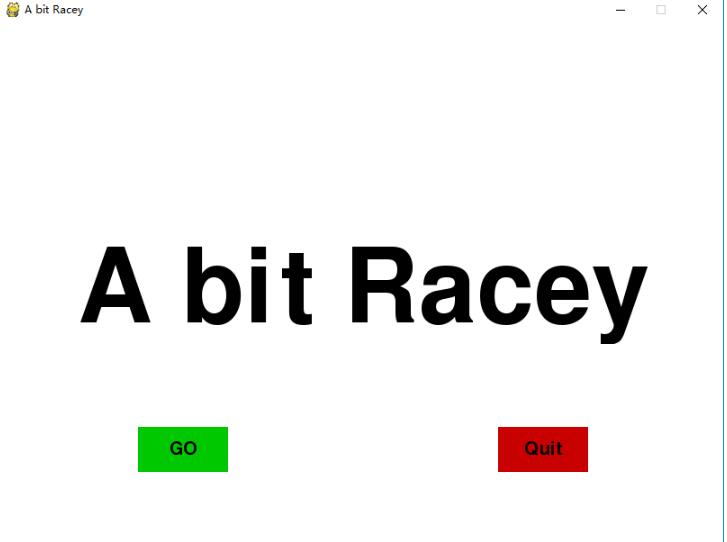
以上就是本文的全部内容,希望对大家的学习有所帮助,也希望大家多多支持【听图阁-专注于Python设计】。